MINT
Please do not hesitate to ask for help! You can find talented modders in the DRG RND Discord or the DRG Modder’s Guild Discord.
Credits:
许杰友 Jieyou Xu (Joe) - Original documentation
mitgobla (Ben) - Updated 2026 guide
trumank - created MINT and other incredibly powerful modding tools
Contents
- 1. How to install MINT (Mod INTegrator)
- 2. Installation Guide
- 3. Usage Guide
- 4. Frequently Asked Questions/Problems
- 4.1 I get an error when I try to add/update/install mods: “authentication error: Unauthorized: Unauthorized”
- 4.2 I get an error when I try to add/update/install mods: “ureq error: https://cdn.discordapp.com/attachments/…/…/oo2core_9_win64.dll”
- 4.3 I get an error when I try to add a mod: “Could not find mod provider for “https://mod.io/g/drg/m/mod_name#description”
- 5. Guide To-Do
- 6. Questions/Issues/Bugs
1. How to install MINT (Mod INTegrator)
This guide will show you how to install the popular mod manager MINT, created by trumank.
1.1 What is MINT?
MINT, derived from Mod Integrator, is a mod manager for Deep Rock Galactic. It is an external program separate from the game that allows you to install and manage mods. You can organise mods into profiles, change their load order, and even install mods that are not on mod.io (through .pak files).
1.2 Why should I use MINT?
I’ve seen time and time again that the built-in mod manager in Deep Rock Galactic is buggy, difficult to use, and not approachable for new and veteran players alike. Common bugs include mods unloading randomly, mods not downloading when joining your friends, and mods showing as subscribed on mod.io but not in-game. These issues have been amplified by the S5.10 update, which changed how the in-game mod manager worked.
By using MINT, you won’t have to rely on the in-game mod manager, and you have full control of how your mods are organised and which ones you want to install, without having them randomly uninstall themselves. Furthermore, you can load mods that are not available on mod.io, which are in the form of .pak files. These are found across various DRG communities and are not available on mod.io, as these creators do not want to use this platform.
1.3 Installing an external program sounds scary. I don’t want to risk it.
No pressure. The source code for MINT is publicly available on its repository on GitHub. I know that doesn’t mean much, especially if you don’t understand code. But to reassure you further, MINT has been in use for over 2 years, and it’s highly recommended by the wider modding community for both creating and playing with mods.
If you have looked into MINT yourself before, you’ll likely have found that there are numerous forks (different versions based on the original MINT). While some of these are popular, I have personally never used them, as the original MINT has worked for me. MINT itself is no longer updated, but still works to this day. So, it’s up to you if you want to try one of these forks, as they might have new features you want.
1.4 I came here for a guide on installation. Not an FAQ. Where’s the guide?
Sorry! Let’s get started.
2. Installation Guide
2.1 Getting a list of all your mods
Before we start with installing anything, let’s first get a copy of all your mods that you currently have installed so you can easily import them into MINT later.
- Subscribe to the “Copy Mod URLs” mod, found here: https://mod.io/g/drg/m/copy-mod-urls
- Load up your game.
- Navigate to the modding menu on the info screen. If your game does not launch to the info screen, you can access it by pausing the game → “Modding” tab → press “To Info Screen” button.
- Click on the Mods button to check that it has installed the Copy Mod URLs mod.
- Return to the Spacerig.
- Pause the game → “Modding” tab
- Click one of the “Copy” buttons. For example, if you want a list of all the mods you have enabled, click “Copy Enabled”. Or if you want a full backup, click “Copy All”
- Paste the contents of your clipboard into a text file, such as opening Notepad and pressing Ctrl+V.
2.2 Disabling the built-in mod manager
As of update S5.10, the built-in mod manager loads sooner than it used to. This means MINT can no longer automatically disable it. So, you’ll need to do a quick change to make it work again.
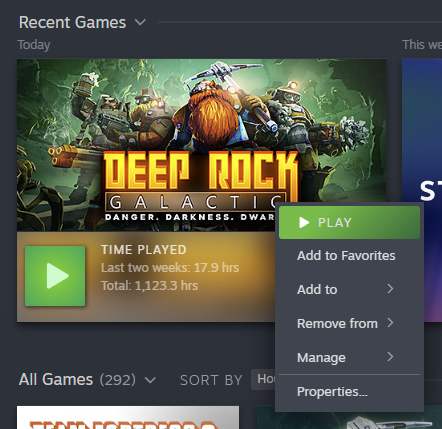
- On Steam, right-click Deep Rock Galactic and click “Properties”
- Under the “General” tab (opens to this by default), you should see text that says “Advanced users may choose to enter modifications to their launch options”. Click on the box below it.
- In this box, type
-disablemodding\ 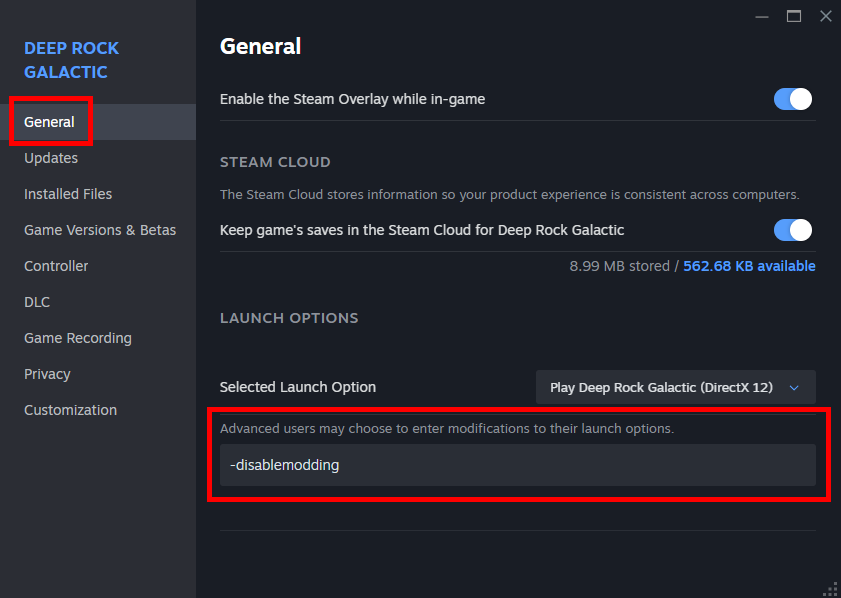 - Close the properties window.
It might seem counterintuitive to put a flag that reads as disabling modding, but all this parameter does is disable the built-in mod manager. It does not stop you from using MINT.
2.3 Downloading and Installing MINT
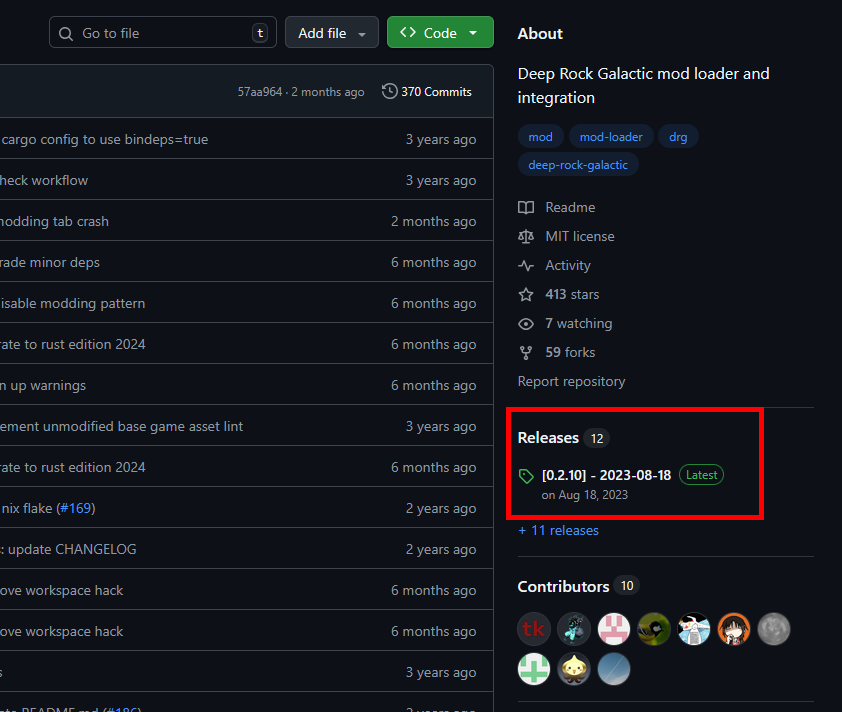
- Navigate to the GitHub repository for MINT, found here: https://github.com/trumank/mint
- On the right-hand side, click on “Releases”.
- Under the version 2.10.0 release, click on the link that says drg_mod_integration-x86_64-pc-windows-msvc.zip
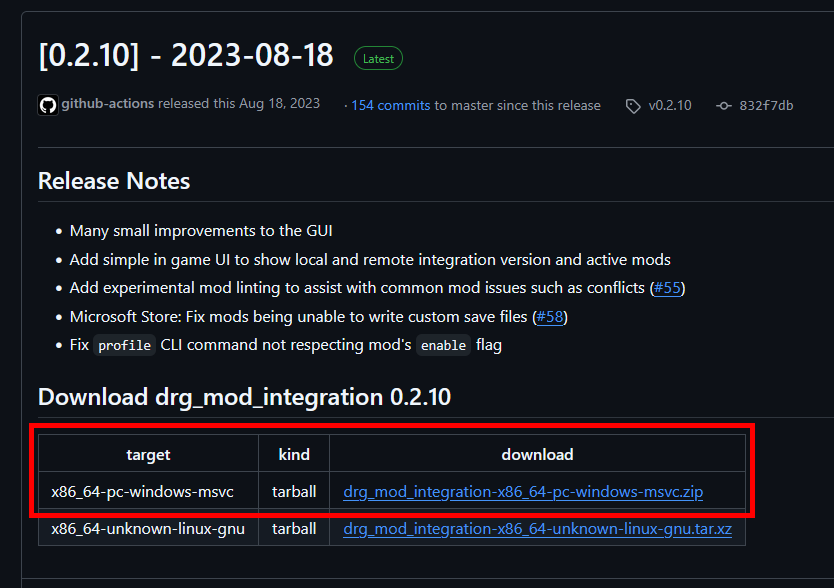
- This will download the Windows version in a ZIP.
- Once downloaded, extract the contents of the ZIP to somewhere accessible to you. For example, you could make a folder called MINT in your documents, and put the contents of the ZIP inside of that folder.
Now that you’ve downloaded MINT, you should see 4 files:
- CHANGELOG
- drg_mod_integration.exe
- LICENCE
- README
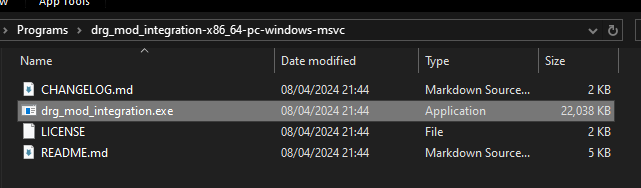
The important one here is drg_mod_integration.exe.
- Double-click the drg_mod_integration.exe file to load MINT. Windows may pop up with a SmartScreen prompt, which you need to allow so that the program launches.
- A separate console window will appear with log messages from MINT, and shortly after, MINT’s graphical interface will appear.
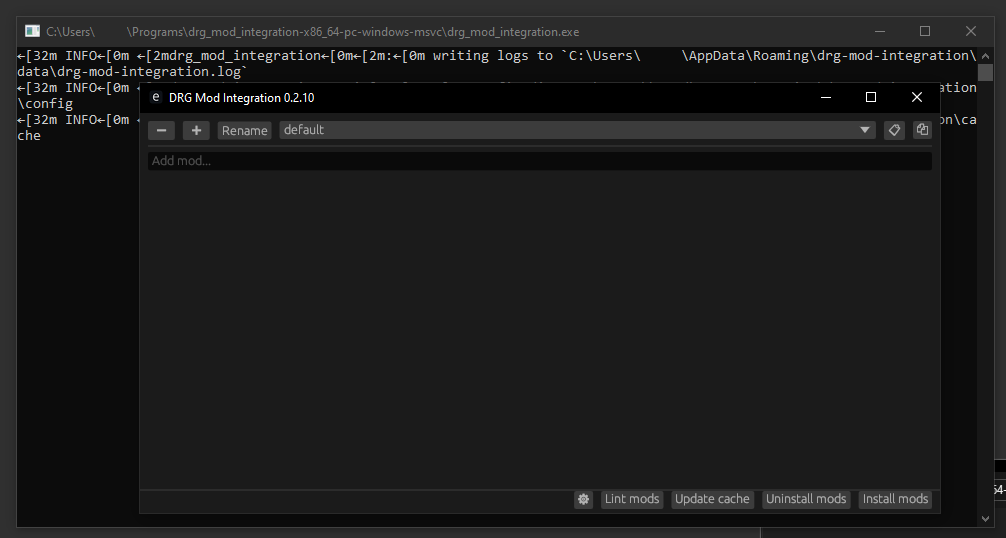
- Now you are ready to configure MINT to be able to download and install mods.
2.4 Configuring MINT to download mods
- Press the small cog icon to the left of “Lint mods”
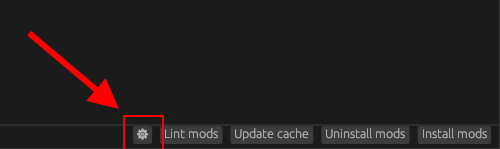
- The Settings menu will now appear.
- First, check that the “DRG Pak” path correctly points to the FSD-WindowsNoEditor.pak, found inside the game installation directory → FSD → Content → Paks
For example,C:\Program Files (x86)\Steam\steamapps\common\Deep Rock Galactic\FSD\Content\Paks\FSD-WindowsNoEditor.pak.- To find your game installation directory, right-click Deep Rock Galactic on Steam → Properties → “Installed Files” tab → “Browse” button next to “Size of installation”
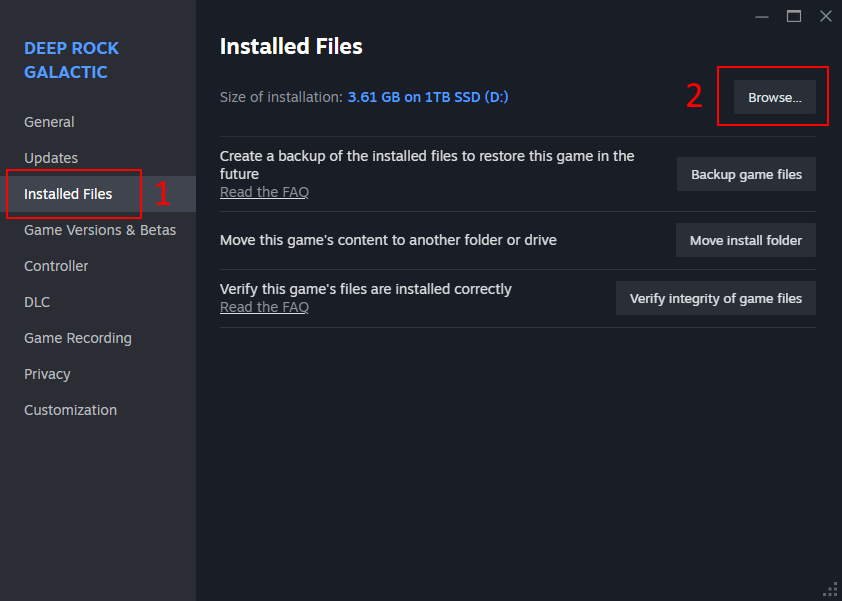
- To find your game installation directory, right-click Deep Rock Galactic on Steam → Properties → “Installed Files” tab → “Browse” button next to “Size of installation”
- Next, you need to configure a mod.io OAuth token. This allows MINT to download mods from mod.io.
- Click on the small cog icon next to “modio”
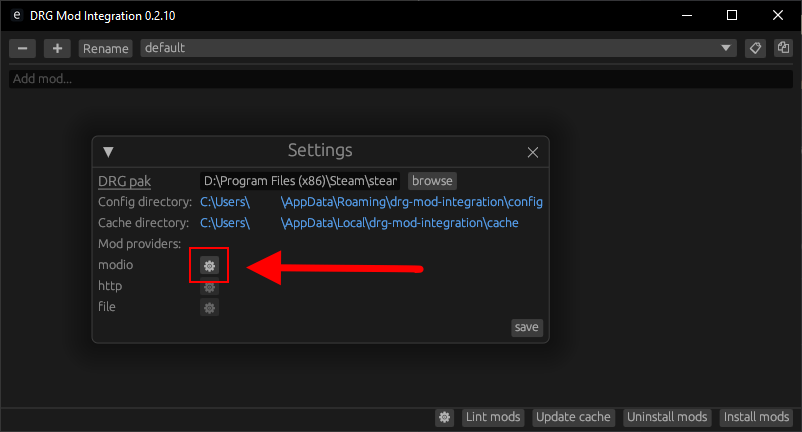
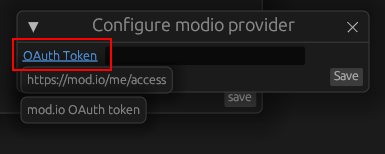
- In the small window that appears, click on the blue “OAuth Token” text. This will open your browser to the mod.io website.
 \
\
- Login to your mod.io account. Once you’ve logged in, if it doesn’t take you to the API access page, then click the blue “OAuth Token” text again to open it.
- Under the “OAuth Access” header on the mod.io page, click on the “New Token Name” text box.
- Give your token a name, such as “MINT”
- Now, press the “+” icon to add the key.
- You will be shown the OAuth Token. Make sure to copy it, as it only gets shown once.
- Go back to MINT, and paste this OAuth token into the empty box next to the blue “OAuth Token
- Press “Save” on the OAuth Token menu.
- Press “Save” on the Settings menu.
3. Usage Guide
3.1 Adding mods to MINT
Now that you’ve configured MINT, you can start adding mods. There are a few ways to do so:
- Click the “Add mod…” text box. Paste a Deep Rock Galactic mod.io mod URL into this box and press enter. Make sure to remove any suffixes, such as
#descriptionfrom the URL. For example, paste a URL like https://mod.io/g/drg/m/mits-mod-manager and then press enter. - Click the “Add mod…” text box. Paste the list of mods you copied from the “Copy Mod URLs” mod and then press enter. MINT can accept multiple mod URLs in one go, separated by a new line.
- Drag
.pakfiles into the MINT window. This will add the file you dragged to the current profile.
3.2 Installing MINT mods into the game
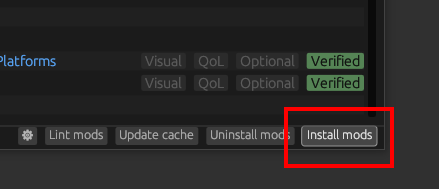
Finally, press the “Install Mods” button. MINT will package all the mods into one file called mods_P.pak and place it in your game installation.
You do not need to keep MINT open during your play session. Even better, you only need to press “Install Mods” once, and you don’t need to open MINT again (unless you want to add/remove mods or update mods).
3.3 Updating mods on MINT
Some of your mods will get updates. MINT does not automatically update your mods. Therefore, before you load up a Deep Rock Galactic session, it is best to first open MINT and then press “Update Cache” before pressing “Install Mods”. Then continue with launching the game.
3.4 Uninstalling mods from the game
To disable a specific mod, but keep it on your MINT profile (if you want to enable it later):
- Open up MINT
- Press the toggle button next to the mod you want to disable/enable
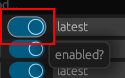
- Press “Install mods” to apply the changes. The “Install Mods” button acts more like an “Apply Changes” button.
To remove a mod from a profile, which also uninstalls it from the game:
- Open up MINT
- Press the minus (-) button next to the mod you want to remove.
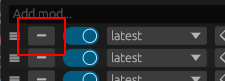
- Press “Install mods” to apply the changes. The “Install Mods” button acts more like an “Apply Changes” button.
To uninstall ALL mods from the game
- Open up MINT
- Press the “Uninstall mods” button.
- Your game will have no mods installed, but will still be in the disabled modding state. Follow the next section to fully uninstall MINT.
3.5 Uninstalling MINT
- Open up MINT.
- Press “Uninstall mods”
- Then press the small cog icon.
- Click both the “Config directory” and “Cache directory” URLs, which will open those folders in a separate window.
- Close MINT.
- Delete the config directory and the cache directory after closing MINT. If you delete them before closing MINT, it will recreate them again when it closes.
- Finally, delete the drg_mod_integration.exe file (or its parent folder)
- On Steam, right-click Deep Rock Galactic → Properties
- Remove the
-disablemoddinglaunch parameter. This will re-enable the built-in mod management.
4. Frequently Asked Questions/Problems
Some troubleshooting can be found on the MINT Wiki on GitHub: https://github.com/trumank/mint/wiki/Common-Errors-and-Troubleshooting
4.1 I get an error when I try to add/update/install mods: “authentication error: Unauthorized: Unauthorized”
This means your mod.io OAuth Token has expired. Create a new one by following the steps under the “Configuring MINT to download mods” section.
4.2 I get an error when I try to add/update/install mods: “ureq error: https://cdn.discordapp.com/attachments/…/…/oo2core_9_win64.dll”
This means you have a mod that requires an additional DLL to work with MINT. The specific DLL must be put in the same folder as the “drg_mod_executable.exe”. See this related issue on GitHub for further instructions: https://github.com/trumank/mint/issues/134
4.3 I get an error when I try to add a mod: “Could not find mod provider for “https://mod.io/g/drg/m/mod_name#description”
Remove the #description part from the mod URL and try adding it again. For example change https://mod.io/g/drg/m/better-waypoints#description to https://mod.io/g/drg/m/better-waypoints
5. Guide To-Do
- Add more images
- Add a video?
6. Questions/Issues/Bugs
Please feel free to reach out to me on Discord (my username is mitgobla) if you have any issues or suggestions for this guide.